Building Simple AI Automations (No Coding Required)
I don't write code for most of my automations. I use tools that connect to each other and let me drag things around. If I can't build it in an afternoon, I don't build it.
Here are the automations I actually use — not the ones that look good in a YouTube demo, the ones that save me real time every week.
The Stack: What I Use
n8n — Source-available automation tool (free to self-host). Think Zapier but you run it yourself. Connect services together with drag-and-drop nodes. Email → filter → AI processing → output. I run it on my home server. Free for self-hosting.
ChatGPT/Claude API — The AI brains inside the automations. n8n calls the API, processes text, and passes the result to the next step. Costs pennies per run.
Google Sheets — Where data lives before and after. Simple, free, accessible from anywhere.
Gmail/Email — Input and output channel. Emails come in, get processed, responses go out.
Start simple. One automation at a time. Don't try to build the entire factory on day one.
Automation 1: Email Triage Bot
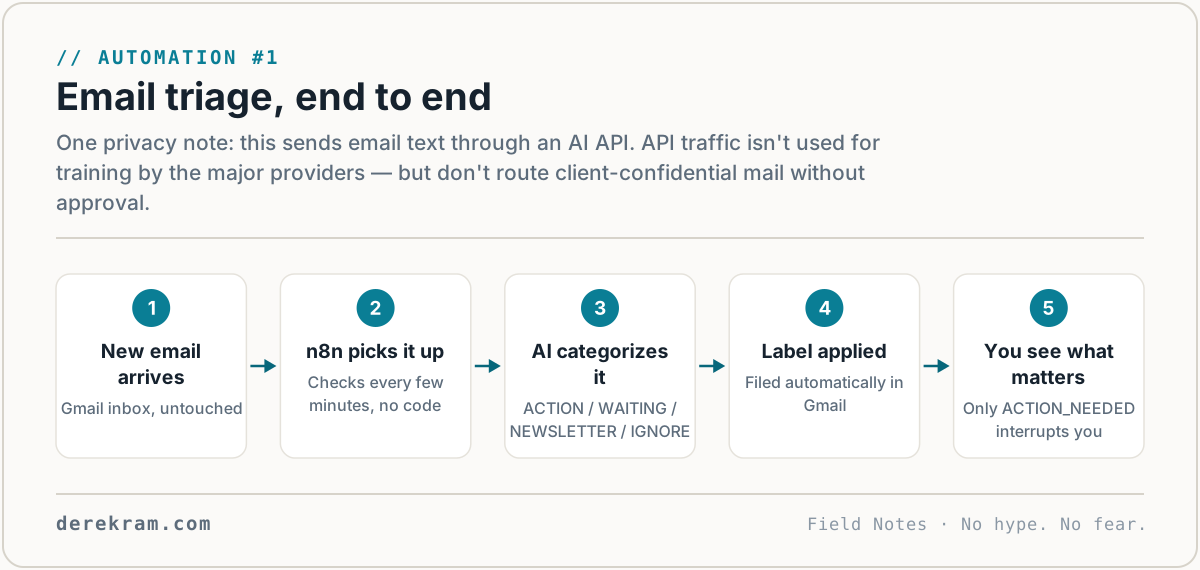
The problem: I get newsletters, receipts, and notifications mixed in with actual emails I need to respond to. Separating signal from noise takes time every morning.
What I built: An n8n workflow that checks my inbox every hour, uses AI to categorize each new email, and labels them.
How it works:
1. n8n triggers every 60 minutes
2. Fetches unread emails from Gmail
3. Each email goes to Claude API with this prompt: "Categorize this email as one of: ACTION_NEEDED, NEWSLETTER, RECEIPT, NOTIFICATION, SPAM. Return ONLY the category."
4. n8n applies a Gmail label based on the category
5. ACTION_NEEDED emails stay in my primary inbox. Everything else gets filtered to labels.
Time saved: ~15 minutes per day. I open my inbox and only see what needs my attention.
Automation 2: Meeting Notes → Action Items
The problem: I take rough notes in meetings. Turning those into clean action items takes 10 minutes I don't have.
What I built: Paste notes into a Google Sheet. n8n watches the sheet. AI extracts action items and emails them to me.
How it works:
1. I paste raw meeting notes into a Google Sheet (one sheet per meeting)
2. n8n watches for new rows (checks every 5 minutes)
3. When a new row appears, sends the notes to Claude with: "Extract action items from these meeting notes. For each action item, list: what needs to be done, who owns it (if mentioned), and any deadline mentioned. Format as bullet points."
4. Emails the clean action list back to me
Time saved: ~10 minutes per meeting. I take messy notes and get clean action items without thinking about it.
Automation 3: Weekly Newsletter Draft
The problem: I want to send a weekly roundup of interesting things I've read, but writing it takes an hour I don't have.
What I built: A Google Sheet where I dump links throughout the week. Friday morning, n8n turns them into a draft newsletter.
How it works:
1. During the week, I paste interesting links into a Google Sheet with a one-line note about why I saved it
2. Friday at 7am, n8n reads all unprocessed rows
3. Sends them to Claude with: "Write a newsletter draft from these links. Include: a one-paragraph intro, each link with a 2-3 sentence summary, and a sign-off. Keep it conversational. Derek's voice — direct, no fluff, no corporate-speak."
4. Emails me the draft. I edit for 10 minutes. Hit send.
Time saved: ~50 minutes per week. The AI writes the draft. I add the human touch.
Automation 4: Customer/Client FAQ Bot
The problem: I answer the same five questions over and over in emails.
What I built: An FAQ document that AI searches when someone asks a common question. Draft response pre-written.
How it works:
1. I maintain a Google Doc with common questions and my standard answers
2. When I get an email that looks like a FAQ, I forward it to a special address
3. n8n receives the forwarded email, searches the FAQ doc for matching questions using AI
4. Drafts a response using my standard answer, personalized with the sender's name and context
5. Emails the draft back to me. I review and send.
Time saved: ~5 minutes per FAQ email. The draft is 90% done. I just verify and add anything specific.
Getting Started Yourself
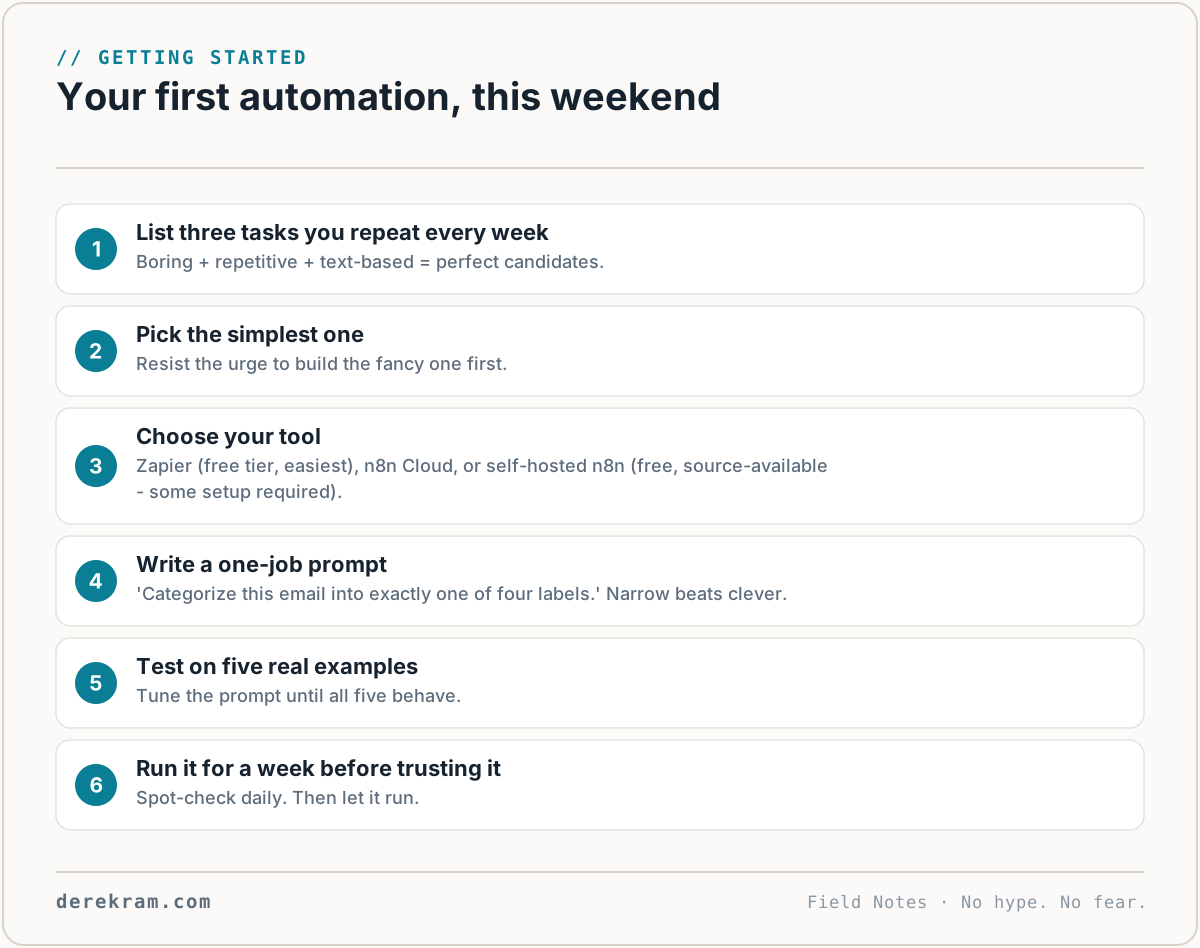
Don't start with my automations. Start with your own pain points.
Step 1: Write down the three tasks you repeat most often. Not the big projects — the small stuff. Sorting email. Formatting reports. Writing similar responses.
Step 2: Pick the simplest one. The one where input → process → output is clearest. Email comes in → AI processes → something goes out.
Step 3: Set up n8n (free, self-hosted) or Zapier (free tier; paid at real volume — easier). Connect your email.
Step 4: Write a prompt that does ONE thing. Not "analyze my email and draft a comprehensive response with action items and calendar suggestions." Just "categorize this email as ACTION or NOT_ACTION."
Step 5: Test with five real examples. See where it gets confused. Tweak the prompt.
Step 6: Run it for a week before building the next one. You'll learn what breaks and what works when you're not watching.
The Rule I Follow
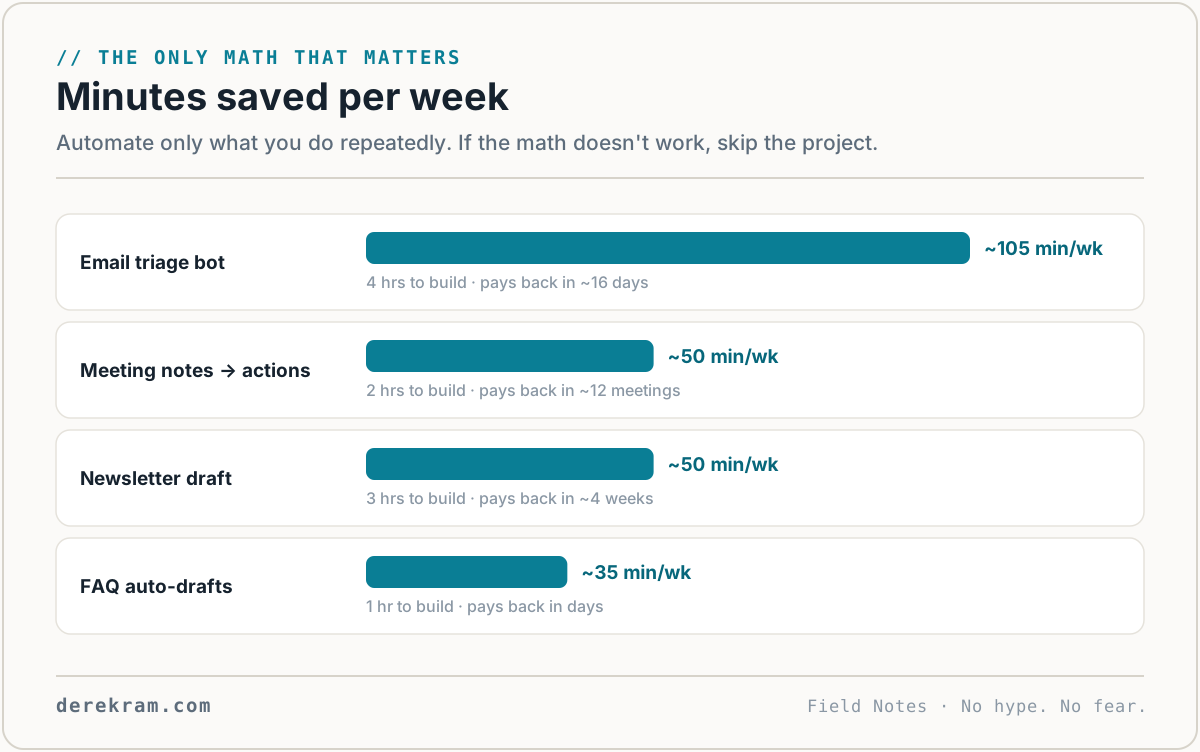
An automation is worth building if it saves more time than it costs to build and maintain.
If building the automation takes more time than it'll save in three months, don't build it. That's a hobby, not a tool.
AI Automation Starter Pack — n8n workflow templates for all four automations above, plus the exact prompts I use. Free with the list.
Get the 5-Minute Digital Safety Checklist
Four things that make you harder to target. No jargon. No fear. Free.
Get the Checklist →