I Let Someone Into My Computer. Here's What I Should Have Known.
A popup appeared. "Your computer is infected. Call Microsoft Support at 1-800-XXX-XXXX." The person on the phone was professional. They directed you to a website, asked you to download a remote access tool, and "ran a diagnostic." They showed you scary-looking error logs. They asked for payment to "clean" the computer. You paid.
Then you realized: that wasn't Microsoft. And you just let a stranger into your computer.
This happens to thousands of people every day. Here's what to do now, in order.
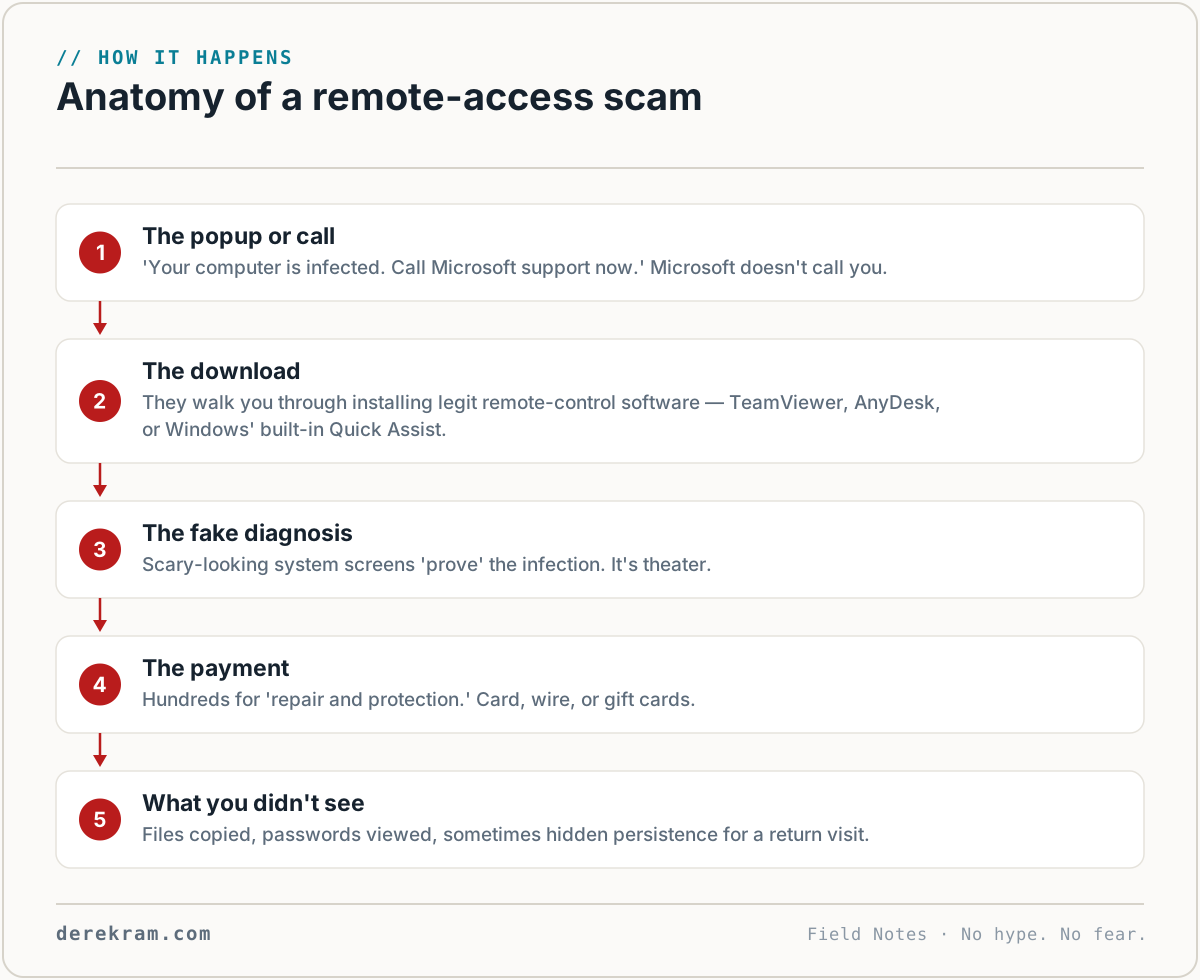
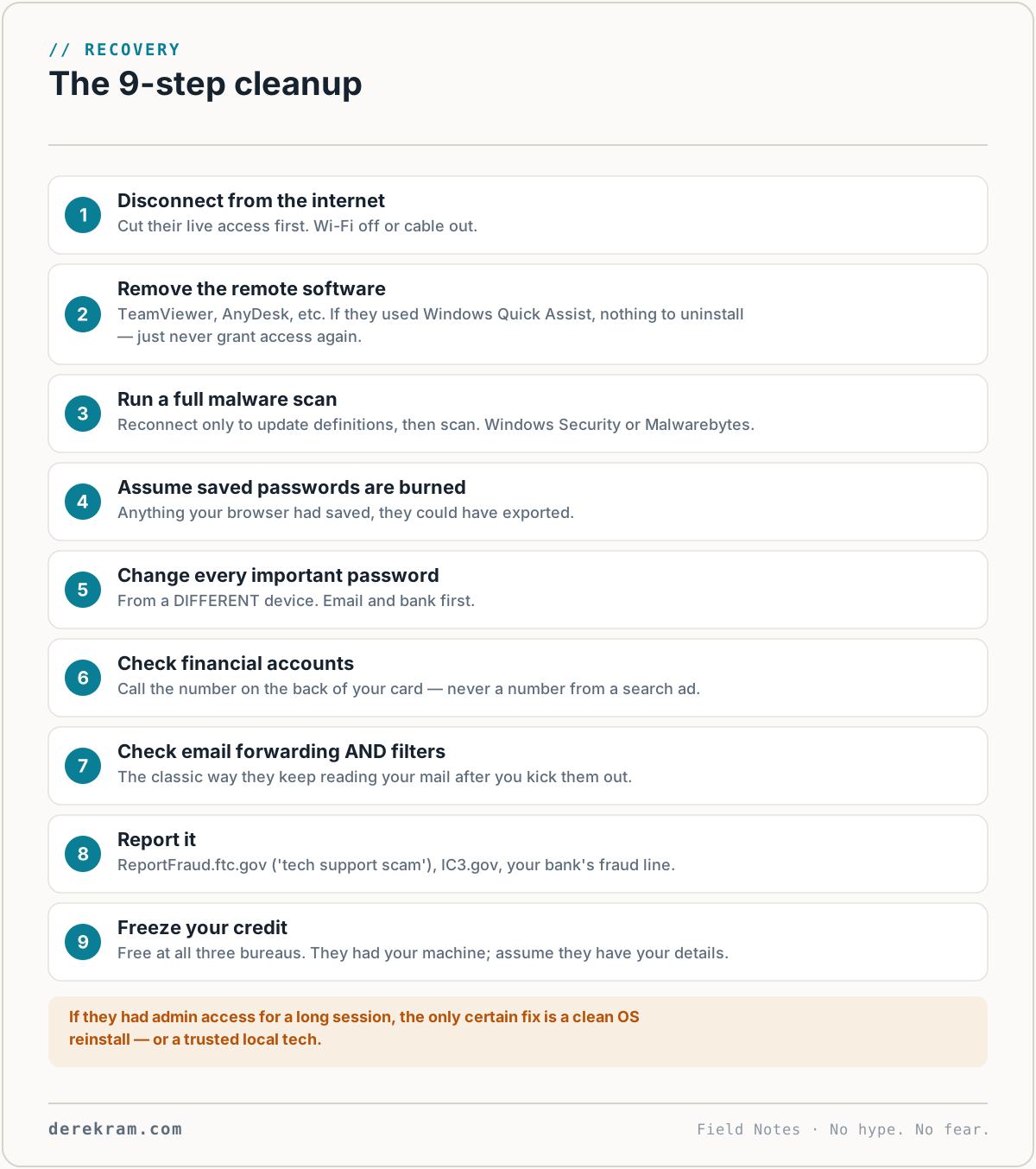
1. Disconnect From the Internet — Immediately
Turn off Wi-Fi. Unplug the Ethernet cable. Enable airplane mode.
This cuts the attacker's connection. If they're still actively in your system, this ejects them. Do this before anything else.
2. Uninstall the Remote Access Software
The tool they had you download — TeamViewer, AnyDesk, LogMeIn, GoTo Resolve (formerly GoToAssist), UltraViewer, or similar. If they used Windows' built-in Quick Assist, there's nothing to uninstall — just never grant access again. It's still on your computer and it's still configured to let them back in.
Windows: Settings → Apps → Installed Apps → find the remote access tool → Uninstall.
Mac: Finder → Applications → find the tool → drag to Trash → empty Trash.
Also check your downloads folder. Delete the installer file too — the one you originally downloaded. It usually has a name like "Support.exe" or "RemoteHelp.dmg."
3. Run a Full Malware Scan
The "diagnostic" they showed you probably included fake errors. But there's a chance they installed actual malware while they had access.
Windows: Windows Security (built in) → Virus & Threat Protection → Full Scan. This takes an hour or more. Let it run.
Mac: Built-in protections (XProtect, Gatekeeper) run automatically. For a second opinion, download Malwarebytes (free version is fine) and run a full scan.
If the scan finds anything, let it clean or quarantine the files. Don't try to "save" anything flagged as malware.
4. Check What They May Have Accessed
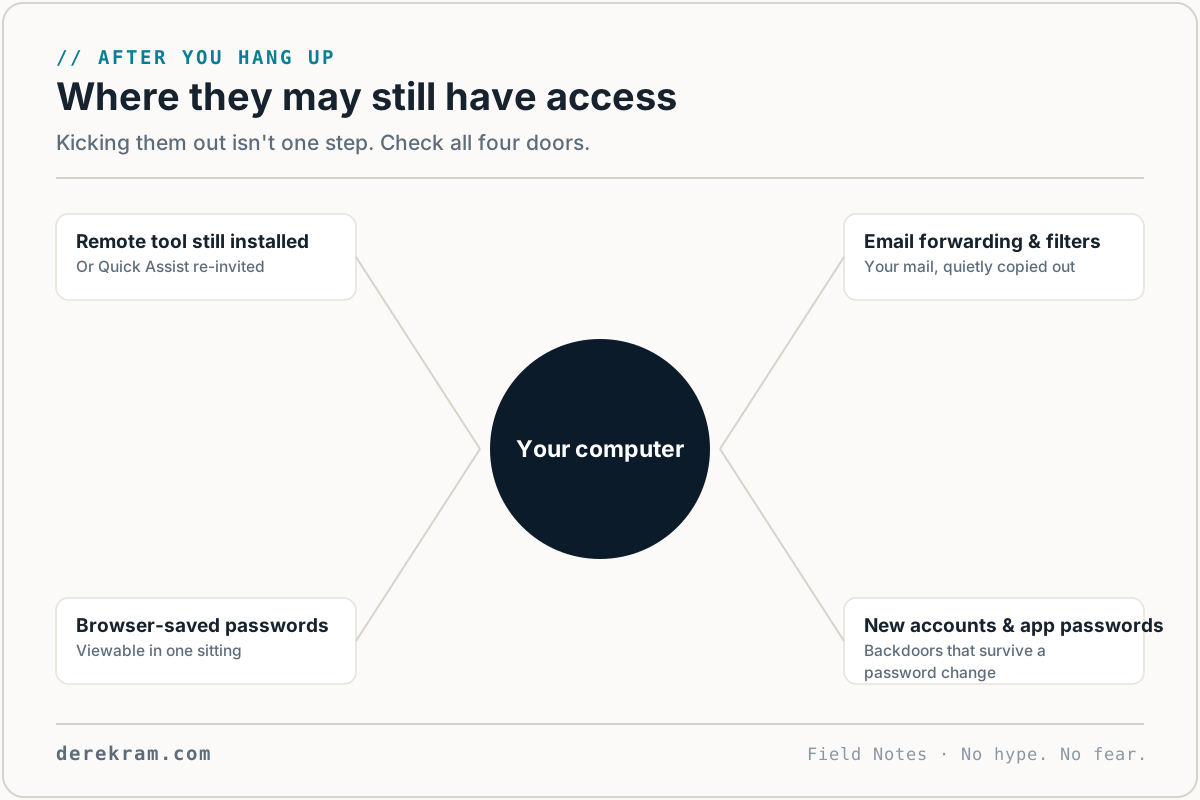
While they had access, they could have opened files, copied documents, or stolen saved passwords.
Check browser saved passwords. If you save passwords in Chrome/Edge/Firefox, the attacker could have exported them. This is the biggest risk.
Your browser keeps no record of which saved passwords they viewed. But assume all saved passwords are compromised.
Check recent files. Sort your Documents folder by "Date Modified." Look for files accessed during the time the attacker was connected. Tax returns, financial documents, scanned IDs — anything with sensitive information.
Check browser history. The attacker may have visited sites while connected. Their browser history (on your computer) might show what they accessed. Look for bank websites, email, or other sensitive logins.
Check for new user accounts. Windows: Settings → Accounts → Other Users. Mac: System Settings → Users & Groups. If there's a user account you didn't create, the attacker created a backdoor.
5. Change ALL Your Passwords
You let someone onto your computer. Assume they took every password they could find.
First priority: Email password. If they get into your email, they can reset everything else.
Second priority: Financial accounts. Bank, credit cards, PayPal, Venmo, investment accounts.
Third priority: Everything else. Social media, shopping, cloud storage, work logins.
Use a different device to change these passwords — your phone, a tablet, or a different computer. Don't change passwords on the compromised machine until after you've run the malware scan and it comes back clean.
If you don't use a password manager, this is going to be painful. Start with email and financials. The rest can wait until tomorrow.
6. Check Financial Accounts
Log into your bank and credit card accounts from a different device. Look for:
If you find anything, call your bank immediately. Use the number on the back of your card — not a number from a search result (scammers buy ads for fake bank support numbers).
7. Check Your Email for Forwarding Rules
This is the step people miss. Even after you change your password, if the attacker set up email forwarding, they still get copies of everything sent to you.
Gmail: Settings → See all settings → Forwarding and POP/IMAP → delete any forwarding addresses you didn't add.
Outlook/Hotmail: Settings → Mail → Forwarding → turn off any forwarding you didn't set up.
Yahoo: Settings → More Settings → Mailboxes → Email forwarding.
8. Report It
9. Freeze Your Credit
If they got your Social Security number or other identifying information, freeze your credit at all three bureaus. It's free and prevents anyone from opening accounts in your name.
[I wrote about exactly how to do this.]
What Not to Do
Don't call the scammer back to "demand a refund." There's a whole secondary scam industry around "recovery services" — scammers who claim they can get your money back for a fee. They can't. Don't talk to the original scammer at all.
Don't just delete everything and move on. Check the forwarding rules. Check the user accounts. Check your financials. The attack wasn't just about the money they charged you — it was about access that may still exist.
Don't beat yourself up. These scams are sophisticated. The popups look real. The "technicians" are trained and scripted. You're not stupid for falling for it. You're one of millions.
Going Forward
After you've cleaned up, set up some protections:
Password manager. If you're still typing passwords from memory, stop. Use Bitwarden (free) or 1Password ($3/month). Every account gets a unique, random password. If you had one before this happened, the attacker couldn't have exported a file full of the same password used everywhere.
MFA on everything important. Email, bank, social media. An authenticator app, not SMS.
Ad blocker. uBlock Origin (free). Many tech support scams start with malicious ads that generate fake popups. An ad blocker stops the popups from appearing in the first place.
Know the signs. Microsoft doesn't call you. Apple doesn't call you. No legitimate tech company generates unsolicited popups with phone numbers. If you see one, close the browser. If it won't close, force-quit: Ctrl+Shift+Esc (Windows) or Cmd+Option+Esc (Mac) → select browser → Force Quit.
Emergency Recovery Card — step-by-step checklist for this exact scenario. Print it. Keep it somewhere you can find it when you're panicking. Free.
Get the 5-Minute Digital Safety Checklist
Four things that make you harder to target. No jargon. No fear. Free.
Get the Checklist →