Your Password Strategy Is the Problem. Here's the Fix.
I used to think I had a good password system. I had a base password — something strong with letters, numbers, and a symbol — and I added a few characters for each site. Tr0ub4dor&3-Facebook, Tr0ub4dor&3-Gmail. You get the idea.
Then I learned how credential stuffing actually works. It's not some hacker guessing passwords one at a time. It's automated. A breach dumps millions of email/password pairs. Bots try those pairs across hundreds of services simultaneously. If your Facebook password matches your Gmail password, they own both.
Once someone's in your email, they can reset passwords for everything else. Bank. Social media. Shopping. All of it.
My "system" wasn't a system. It was a single point of failure wearing a disguise.
Why Password Reuse Is the Root Problem
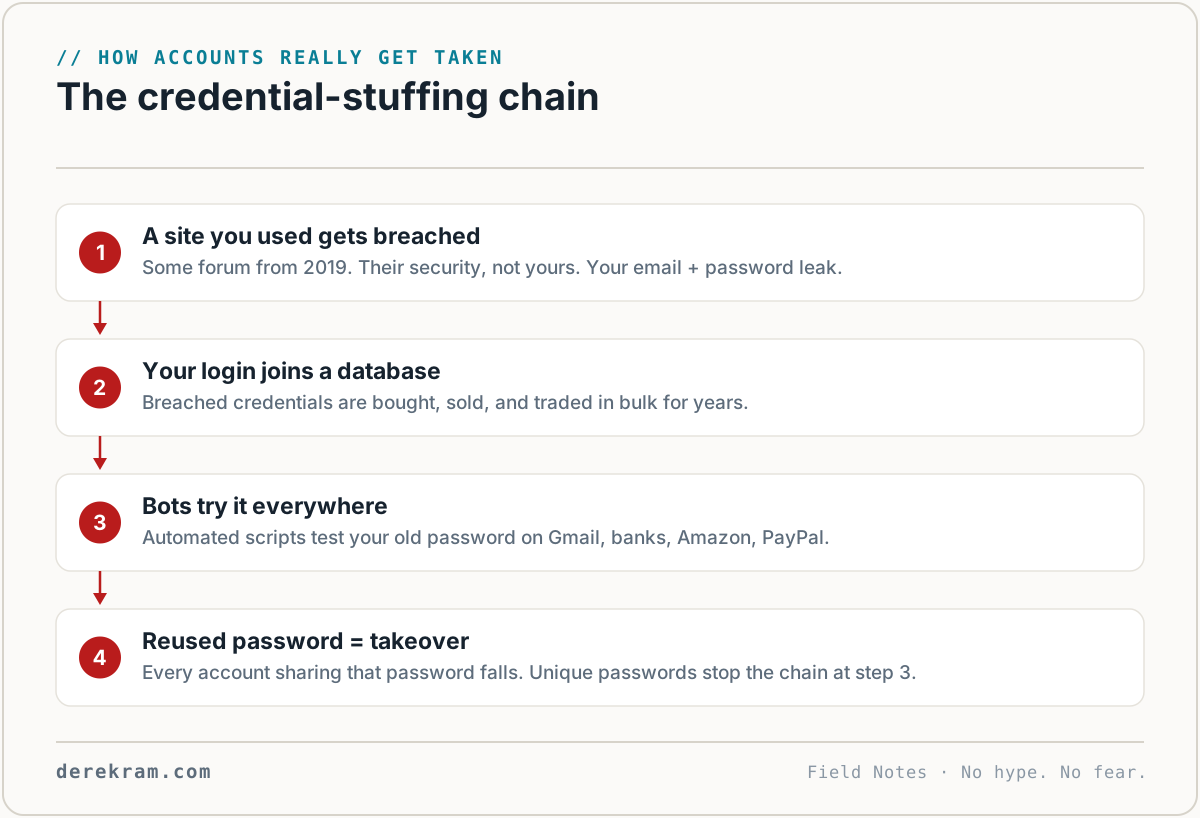
Data breaches happen constantly. In 2025 alone, over 1 billion records were exposed. Every breach feeds a database that attackers share, sell, and automate against.
Here's how it plays out:
1. A small forum you joined in 2018 gets breached. You barely remember it.
2. Your email and password from that forum end up in a credential database.
3. Bots try that combination on Gmail, Outlook, banks, PayPal, Amazon.
4. If you reused the password, they're in.
It's not targeted. You're not special. You're one of thousands of accounts the automation tries.
The solution isn't "make a stronger password." It's "never use the same password twice." And humans can't do that without help.
Enter the Password Manager
A password manager is a program that generates, stores, and fills in passwords for you. You remember one master password. It remembers everything else.
Here's what it actually does:
xK9#mL2@pQ7$vR4!nW8 — random, unique per site, impossible to guessUsing a password manager is more secure AND more convenient than not using one. That's rare in security.
Which Password Manager Should You Use?
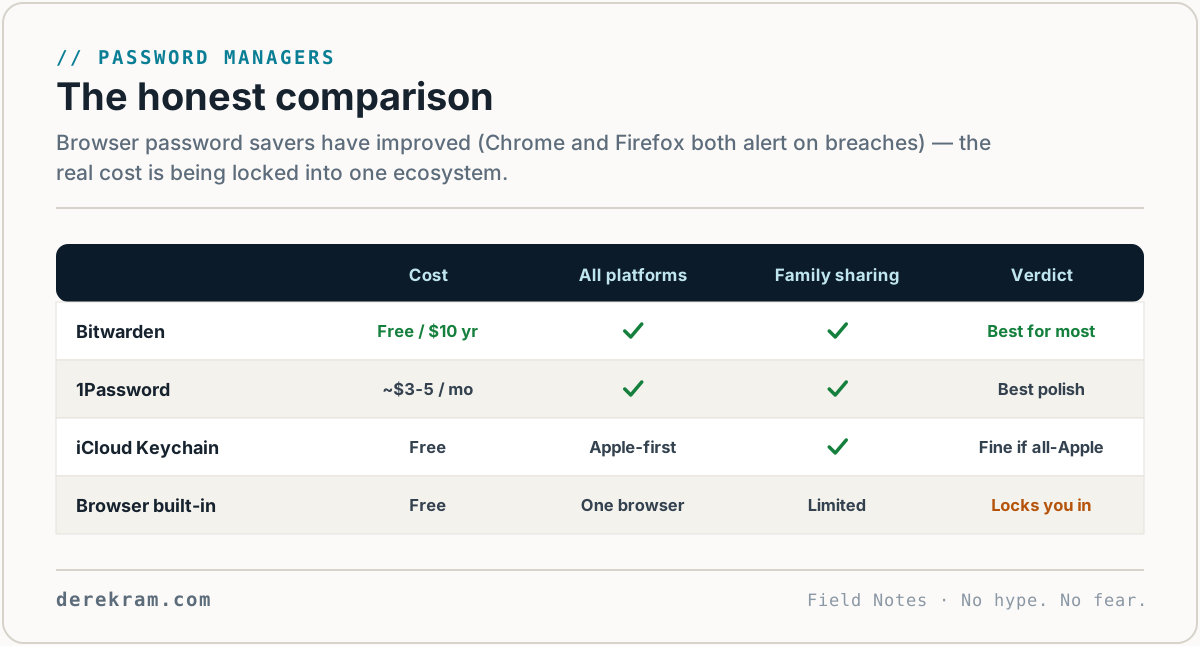
I've used several. Here's my honest take:
Bitwarden — Best for Most People
Bitwarden is open source, audited by third parties, and the free tier does everything most people need. Passwords sync across unlimited devices. Browser extension is clean. Phone app works with biometric unlock.
I recommend Bitwarden as the starting point for almost everyone. If you're not sure which one to pick, pick this one.
Setup time: 15 minutes
Cost: Free (premium is $10/year for extras like emergency access and file attachments)
1Password — Best for Families
If you're managing passwords for a household, 1Password's family plan is the best option I've used. Shared vaults let you control what passwords each family member can access. You can give your teenager the Netflix password without giving them your bank login.
The interface is more polished than Bitwarden. But it's paid-only — no permanent free tier.
Setup time: 15 minutes
Cost: $3/month individual, $5/month family (up to 5 people)
iCloud Keychain — Fine for Apple-Only Households
If everyone in your family uses Apple devices and nothing else, Keychain works. It's built in, requires zero setup, and has improved significantly. It now supports TOTP codes (the kind authenticator apps generate) and shared password groups for families.
But the moment someone uses an Android phone or a Windows laptop, Keychain falls apart. Also, it doesn't have a clean way to export passwords if you decide to switch.
Setup time: Built in — just turn it on in Settings
Cost: Free with Apple devices
What About Chrome/Firefox's Built-in Password Saver?
Better than nothing. Worse than a real password manager. Browsers store passwords less securely, don't work across different browsers, and lock you into a single ecosystem. (To be fair, Chrome and Firefox both alert on breached passwords now — the real limitation is moving your vault between browsers and devices.)
Use a real password manager. It'll work everywhere.
Setting Up Bitwarden in 15 Minutes
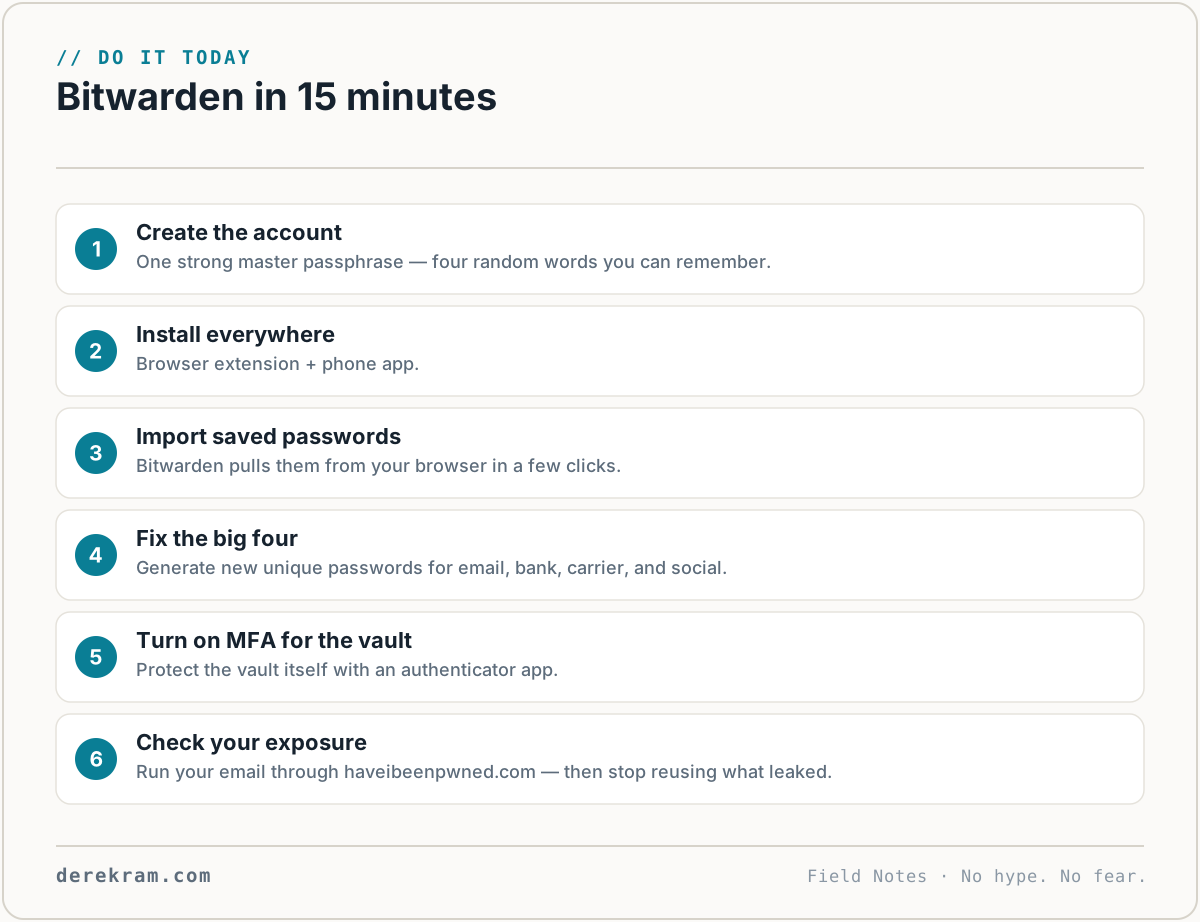
Here's the quick version. Do this now.
1. Go to [bitwarden.com](https://bitwarden.com) and create an account. Pick a strong master password — this is the only one you'll remember. Make it long (16+ characters) and unique. A passphrase works well: correct-horse-battery-staple is better than P@ssw0rd!.
2. Install the browser extension (Chrome, Firefox, Edge, Safari — all supported).
3. Install the phone app (iOS or Android).
4. Log in on all three: web vault, browser extension, phone app.
5. As you visit your most important sites (email, bank, social media), Bitwarden will ask if you want to save the password. Say yes. It'll also ask if you want to update weak or reused passwords. Say yes to that too.
6. Over the next week, as you naturally log into accounts, Bitwarden will capture them all. You don't need a marathon session.
That's it. You now have a password manager.
One More Thing: Check If You've Been Breached
Once you've set up your manager, go to haveibeenpwned.com and type in your email address. It'll tell you which breaches your email appeared in.
Don't panic when you see results. Almost everyone has been in a breach. What matters is whether you were reusing passwords when it happened. Now that you have a password manager, you won't be.
The Bottom Line
Password reuse is the vulnerability. Not weak passwords — reused passwords. A password manager fixes this completely.
Install one today. Set up MFA on your email. Those two things alone put you ahead of most people.
Get the 5-Minute Digital Safety Checklist — password manager setup, MFA guide, and breach check in one page. Free.
Get the 5-Minute Digital Safety Checklist
Four things that make you harder to target. No jargon. No fear. Free.
Get the Checklist →